Guides · Beginner help
Slicers explained and where to find 3D models
What a slicer does, how Bambu Studio, PrusaSlicer, OrcaSlicer and UltiMaker Cura differ, and how to use model libraries such as Printables, MakerWorld and Thingiverse without breaking a licence.
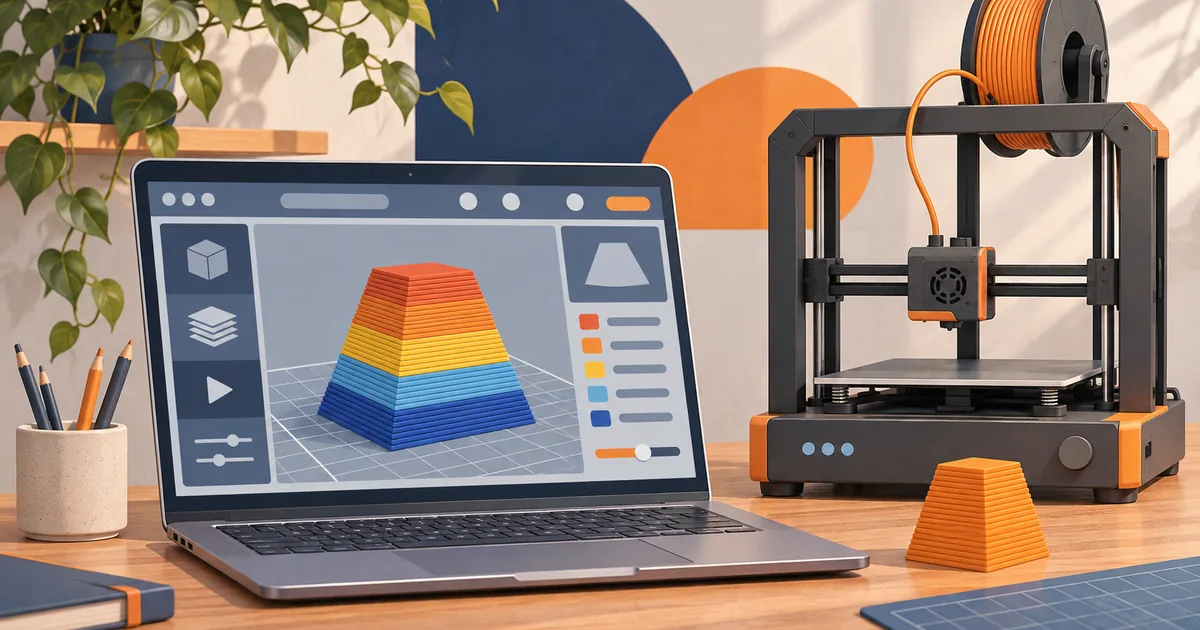
A 3D printer cannot read a 3D model directly. It needs a list of moves and temperatures, called G-code (or a maker's own variant of it). A slicer turns your model into that list: it cuts the model into thin layers, plans the path of the nozzle on each layer, and adds supports, infill and temperature settings. Choosing a slicer is easier than it looks, because the main ones share a family tree.
What a slicer does, step by step
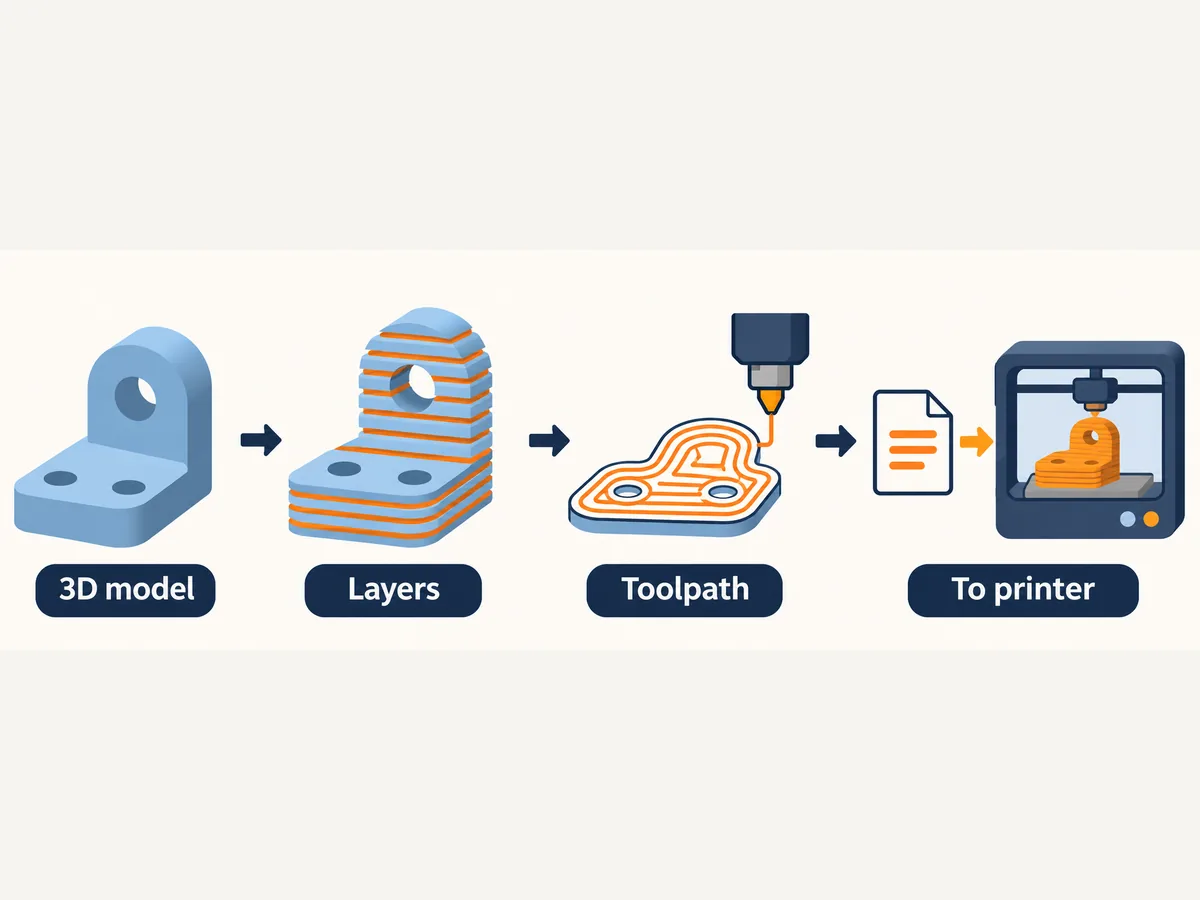
- Import a model file (usually STL, 3MF or STEP).
- Choose the printer, filament and nozzle profile. Profiles hold the temperatures, speeds and limits for your machine.
- Place and orient the model on the plate. Orientation affects strength, supports and surface finish.
- Pick a layer height and infill. Thinner layers look smoother but take longer.
- Add supports and a brim if needed.
- Slice and read the preview: it shows each layer, the estimated time and the filament weight. That weight and time are what you need for our print cost calculator.
- Send the file to the printer over the network or on a USB stick or card.
The four slicers most UK beginners meet
PrusaSlicer. Prusa describes it as free, open source and needing no account, running on Windows, macOS and Linux, with Simple, Advanced and Expert modes so you can start with sensible defaults and reveal more settings later. It includes profiles for Prusa printers and many others.
Bambu Studio. Bambu Lab's slicer, published on GitHub under the GNU Affero General Public License (AGPL-3.0). Its own description is "PC Software for BambuLab and other 3D printers", and its README says it is based on PrusaSlicer, which comes from Slic3r. It is the natural choice for Bambu printers and the AMS.
OrcaSlicer. A community slicer, also on GitHub under AGPL-3.0, describing itself as a G-code generator for printers including Bambu, Prusa, Voron and Creality. Many owners of mixed printers use it because it has profiles for lots of brands and extra calibration tools.
UltiMaker Cura. UltiMaker's Cura page describes an open-source slicing engine with more than 400 settings, free to download for Windows, macOS and Linux. It has a long history and a huge number of tutorials, and supports many non-UltiMaker printers.
Which one should I use?
Start with the slicer your printer's maker recommends, because its profiles are tuned and supported. Bambu Studio for Bambu Lab, PrusaSlicer for Prusa, and the maker's own slicer or Orca for Creality, Elegoo, Anycubic and others. Once you are comfortable, try OrcaSlicer or Cura if you want a feature your default lacks. Slicer files and profiles are not always interchangeable, so keep notes of settings that work.
Where to find models
You do not need to design anything to get started. Large free libraries host millions of models.
- Printables is run by Prusa. Prusa's MK4S page points owners to free models for the kitchen, living room, home decor and garden on Printables.
- MakerWorld is Bambu Lab's model site. Bambu's A1 mini page links to example models "available in MakerWorld", and the Bambu Lab wiki publishes MakerWorld content, upload and print-profile guidelines. Many MakerWorld models come with ready-made print profiles for Bambu printers.
- Thingiverse is one of the oldest model libraries, with a very large back catalogue of community designs.
Tips for picking a model:
- Look for photos of real prints ("makes") from other users. They show the model actually prints.
- Read the description and comments for recommended orientation, supports and material.
- Prefer 3MF files with profiles if your slicer supports them, but check the profile matches your printer and nozzle.
- Start with small, popular models before attempting something that takes a day to print.
If you print miniatures for tabletop games, painting them is its own craft. Our sister site Miniature Painting Stations covers setting up a painting space.
Licences: what you can do with a downloaded model
A free download is not the same as "do whatever you like". Model pages show a licence, often a Creative Commons one. Creative Commons' licence guide explains the building blocks:
- BY – you must credit the creator.
- NC (NonCommercial) – only non-commercial use; Creative Commons defines that as "not primarily intended for or directed towards commercial advantage or monetary compensation".
- SA (ShareAlike) – adaptations must be shared under the same licence.
- ND (NoDerivatives) – you may not share modified versions.
If you want to sell prints, check the licence first. Some designers sell commercial licences separately. Some sites also have their own rules on exclusive models or creator rewards; read the site's terms.
A sensible first-week workflow
- Print the maker's sample file.
- Download one small, popular model with lots of makes.
- Slice it with the default profile for your printer and PLA.
- Read the preview: check the first layer and any supports.
- Print, then change one setting at a time (for example layer height) and compare.
Do I need to learn CAD?
No. Many people print for months using library models. When you want custom parts, free beginner-friendly design tools exist, but they are outside the scope of this guide.
Can I use any slicer with any printer?
Usually, if the slicer has a profile for your printer or you can build one. Some features, such as a maker's multi-colour unit or cloud printing, may only work fully in the maker's own slicer.
Sources
Opened and checked on 15 November 2026.
- github.com/bambulab/BambuStudio
- www.prusa3d.com/p/prusaslicer/
- github.com/OrcaSlicer/OrcaSlicer
- ultimaker.com/software/ultimaker-cura/
- www.prusa3d.com/product/original-prusa-mk4s-3d-printer-5/
- wiki.bambulab.com/en/makerworld
- uk.store.bambulab.com/products/a1-mini
- creativecommons.org/cc-licenses/
- miniaturepaintingstations.co.uk/